Pages

Showing posts with label Bindings. Show all posts

Put Component References in the correct memory scope

Memory scopes itself can be confusing enough, therefor I always advise my fellow developers to use the ADF scopes as much as possible and avoid the JSF scopes if they can.

When using taskflows, a lot of times, we want to store values in a pageFlowScope bean, for example to use during the lifecycle of the taskflow on several pages. Now a common mistakes is to have the UI components bind to the same bean as the values.
Usually this happens, because there is an actionListener that refreshes the component in the pageFlowScope bean, that also sets values in that same bean.

I am always a fan of splitting up beans in smaller logical blocks of code, but in this case it is necessary as well. There is a good blog by the a-team on the best practises for bindings in ADF. Next to that, there is also a Code Guideline on the ADF Architecture Square:

• [ADFcg1-03009] – Store UI components in requestScope and backingBeanScope beans - only store references to UI components in requestScope and backingBeanScope beans. Never store references to UI components in applicationScope, sessionScope, viewScope or pageFlowScope beans.

Not doing this, can cause problems on a HA clustered environment, but the main and best reason in my eyes for this is because the UI component tree might not be released correctly. This has two side effects, mostly a significantly increasing of memory load of your application, but I have also seen some strange behaviour of the UI component, leading to inconsistent state of the component in the browser.

The tricks is to split the beans in separated concerns, one that manages the UI components, holding the component references, as well as the actionlisteners. In the taskflow we inject the pageFlowScope bean holding the values in this backingBeanScoped bean that manages the UI state.
Because we have access to the values through the injected bean, we can use the getters and setters to read or modify the value in the pageFlowScope bean, while making sure our UI component references never exceed the backingBeanScope.

My next blogpost will show an example of how to set up this beans including code examples.

Resources:


Use tree binding accessors to show detail rows

Tree bindings can be very handy, for example to combine details in the same row as the master. Let’s assume we have the following starting point based on the HR schema:


We see the department in a form layout with navigation buttons, with a table under the form showing information about the employees. As you can see in the screenshot below in the ApplicationModule, there is also a Jobs detail under the EmployeeView.


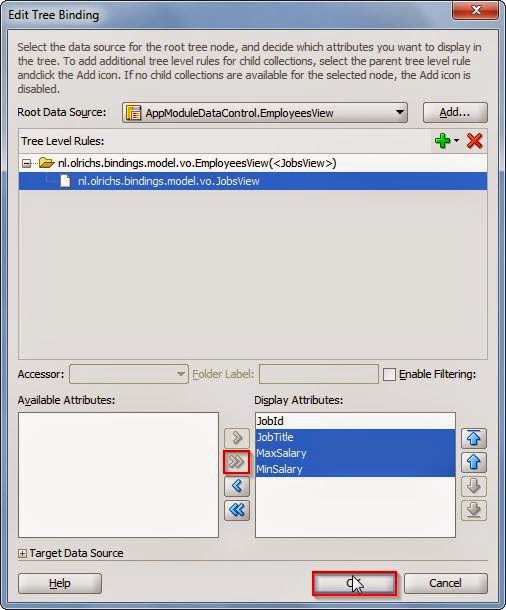
If you go to the bindings on the page, you see the Tree Binding ‘EmployeesView’. You can edit the Tree binding very easily through the overview of the binding page. If we add the JobsView as detail this will be available in the page as well.


Don’t forget to shuffle the attributes that you need to the right:


After pressing ok, the source of the PageDef should now look something like this:


You see that the first nodeDefinition in the tree has gained an Accessors element, in this Accessors element there is an item with the name JobsView. We can now use this accessor in our table in the page as well. To illustrate I add two new columns to the table.


The editor does not really understand this, so you do not get any help from the IDE. You can see that the EL expression to the hints of the EmployeeView is the same, but after that we use the accessor value to navigate to that nodeDefinition in the Tree, after which we enter the value from the AttrName inside this nodeDefinition.
The value itself however, we need to access through the row. You can see the EL expression in the value of the outputText. After the row we again first use the accessor value but then go to the bindings, after the bindings we enter the AttrName value and we end the EL expression with the inputValue.

On run time this results in the two extra added columns: